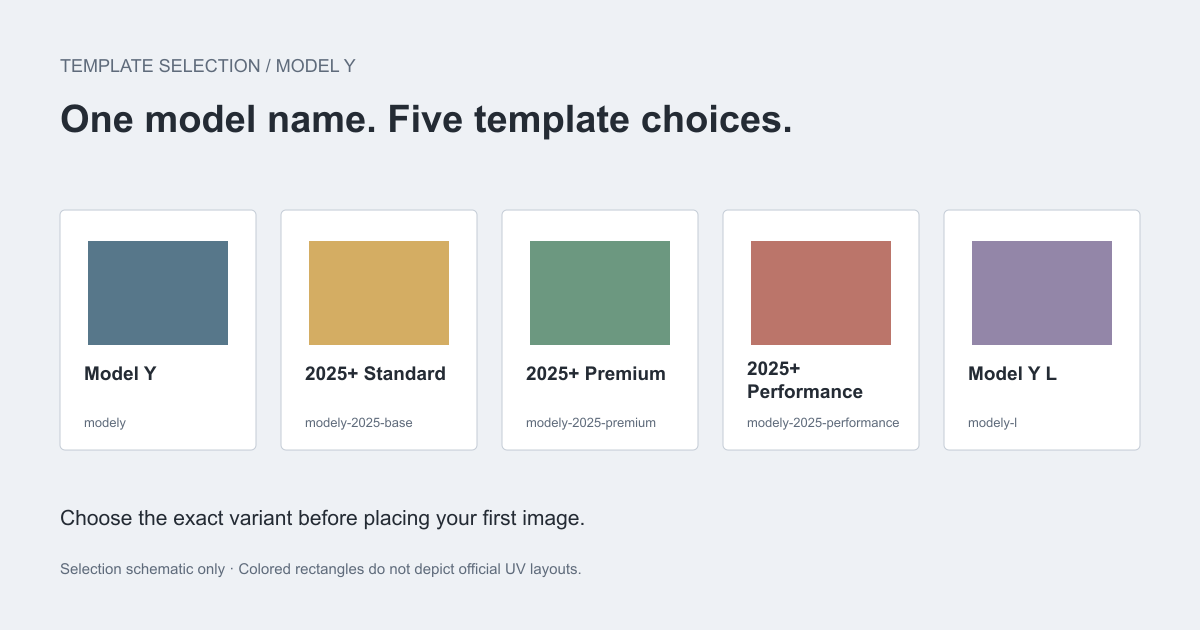
"Model Y template" sounds like a single download. Tesla's official repository contains five Model Y layouts. Choosing by model name alone can leave you designing on the wrong canvas before you draw your first stripe.
This guide helps you select the right starting file, preserve its geometry, and check a design before export. The payoff is concrete: you will know which official folder to inspect and which shortcuts to avoid. These are digital Paint Shop templates, not cut files for physical vinyl installation.
Template essentials
- Match the vehicle variant, not just the Model Y name.
- The five official Model Y templates checked here are 1024 by 1024 pixels.
- The official Cybertruck template is 1024 by 768 pixels; keep its rectangular canvas.
- Template layout, PNG upload requirements, and vehicle feature availability are separate checks.
What a Tesla wrap template actually does
A template is a two-dimensional map for artwork that will be applied to the vehicle's digital surface. Shapes that sit next to one another in the PNG may represent different body panels. Conversely, parts that meet on the car may be separated in the flat image.
That distinction matters when placing a line across a door boundary. Drawing one continuous stripe across the whole canvas does not establish that the mapped stripe will continue smoothly across the vehicle. A 3D design workspace gives you another view of that relationship, but the preview remains a design aid rather than a vehicle compatibility certification.
Start from Tesla's official template repository. A third-party file can be useful, but its label should identify the template it uses. If the source only says "Tesla wrap PNG," there is not enough information to confidently select it for a particular variant.
The five Model Y template folders
The following folders were present in Tesla's official repository when checked on October 2, 2026. All five inspected Model Y template canvases were 1024 by 1024 pixels. Folder names are useful identifiers; they are not a substitute for confirming your vehicle's variant.
| Official folder | Variant label in the folder name | Canvas | Where to inspect it |
|---|---|---|---|
modely |
Model Y | 1024 × 1024 | Official Model Y folder |
modely-2025-base |
2025 base | 1024 × 1024 | Official base folder |
modely-2025-premium |
2025 premium | 1024 × 1024 | Official premium folder |
modely-2025-performance |
2025 performance | 1024 × 1024 | Official performance folder |
modely-l |
Model Y L | 1024 × 1024 | Official Model Y L folder |
Identical canvas sizes do not mean identical panel layouts. Treat each folder as a separate starting point. Do not infer that a design for the original modely layout will align on every 2025 or L variant simply because the exported PNG has the same width and height.
If your variant is unclear, pause before creating detailed graphics. Compare your vehicle information with the available official labels. Save the source folder name with your project so you can later tell which layout a download was built from.
Why Cybertruck should not be forced into a square
The official Cybertruck template inspected for this guide is 1024 by 768 pixels. Cropping or stretching it to 1024 by 1024 changes the canvas relationship that the published file provides.
Tesla's README includes a general square image range of 512 by 512 to 1024 by 1024. The repository's actual Cybertruck asset is a useful exception to inspect directly. Preserve the corresponding official template dimensions when preparing artwork, rather than using a generic resizing rule for every vehicle.
This distinction is also a reason to avoid copying a Model Y design onto a Cybertruck file with a single resize operation. You can reuse a color palette or motif, but panel placements need to be rebuilt for the target layout. A broad diagonal that works as a concept on one model may meet completely different boundaries on another.
A repeatable template-selection workflow
Use this sequence before investing time in detailed artwork:
- Identify the vehicle model and variant you want to depict.
- Find the matching folder in Tesla's official repository.
- Keep an untouched copy of the template and note its dimensions.
- Create a separate working file for your artwork.
- Inspect panel placement in a mapped preview when available.
- Export a PNG while preserving the selected template's canvas.
Work on large shapes first. Check the hood, both sides, rear, and roof before adding text or fine decoration. If a shape appears on the wrong panel, correct its placement at this stage. Adding more detail rarely solves a mapping problem.
The wrap gallery is useful for comparing color and composition, while the download library provides a place to look for existing designs. In either case, check the selected model information. A visual reference can inspire your design without being a ready-to-import file for your variant.
Check the export separately
A correctly selected template does not automatically produce an import-ready file. Tesla also specifies PNG format, a maximum file size of 1 MB, and filenames no longer than 30 characters using letters, numbers, underscores, hyphens, or spaces.
Keep the editable project and exported upload file separate. If the PNG is too large, optimize a copy and inspect it again. Be especially careful with narrow stripes and small lettering: a smaller file is only useful if it retains the artwork you intended.
Our Paint Shop download and import guide covers the app upload path and the case-sensitive USB Wraps folder. Checking those requirements after export keeps layout decisions separate from transport and file-format problems.
Start a project in the WrapLab3D studio with your vehicle's matching template, and check the mapped panels before adding fine detail.
Sources and method
Source: Tesla's official custom-wrap repository, including the linked Model Y folders, checked October 2, 2026. Template dimensions were inspected from the published assets. We have not tested these exports in a vehicle; menu availability and vehicle-specific software requirements remain separate checks.