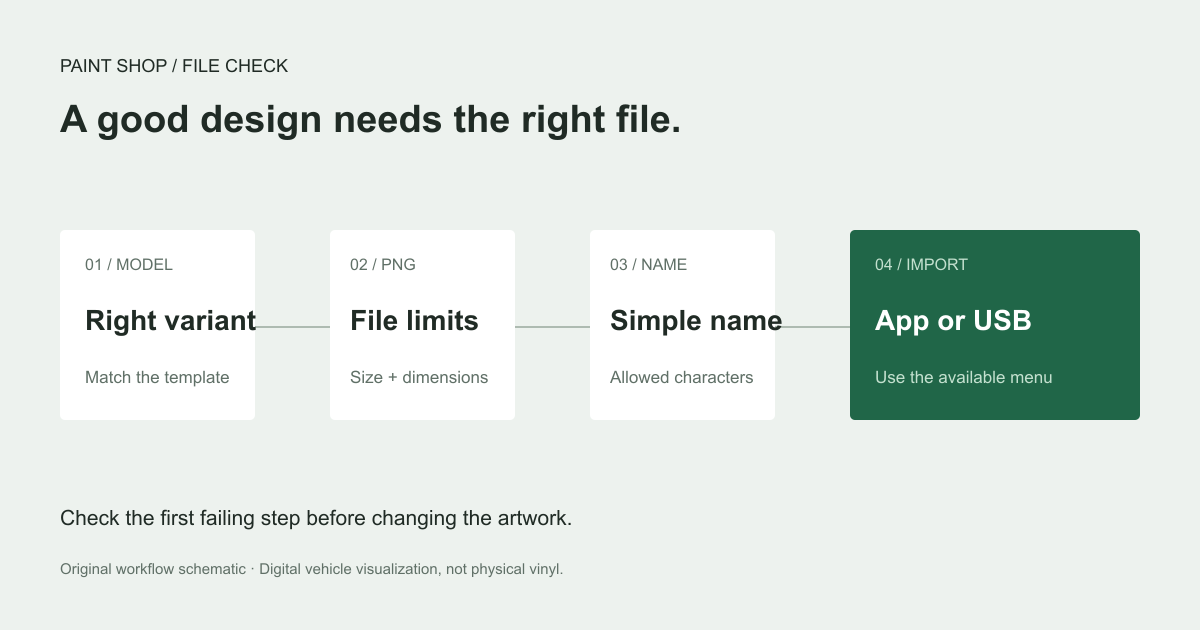
You downloaded a Tesla wrap, copied it to a drive, and opened Paint Shop. Nothing appeared. Before downloading another design, check the file, the template, and the import path: a good-looking image can still be the wrong upload.
This guide turns Tesla's published custom-wrap instructions into a practical download checklist, then walks through the app and USB routes. It concerns the digital appearance shown in Paint Shop. It does not change your vehicle's physical paint or install a vinyl wrap.
Quick checks
- Use a PNG made for your exact vehicle template and keep its original canvas dimensions.
- Keep the file at or below 1 MB, with a permitted filename of no more than 30 characters.
- The app route requires version 4.59.0 or later and an available Creations menu.
- The USB route uses a case-sensitive
Wrapsfolder at the drive's root.
Start with the vehicle, not the thumbnail
A thumbnail tells you about a design's colors. It does not establish which vehicle layout the file uses. Before choosing a file from the wrap download library, identify the model and variant that the asset was created for.
Tesla publishes different templates for several Model 3 and Model Y variants. A file labeled only "Model Y" needs a closer look if your vehicle uses one of the newer layouts. Our Tesla wrap template guide explains the five Model Y folders and the unusually shaped Cybertruck canvas.
Use the matching official template as the reference. Do not resize every downloaded PNG into a square just because a general upload instruction mentions square dimensions. The published Cybertruck template is 1024 by 768 pixels, while the five Model Y templates checked for this guide are 1024 by 1024.
Check the PNG before importing it
The official Tesla custom-wrap instructions specify PNG files, a maximum size of 1 MB, and filename restrictions. Check the actual downloaded file rather than the image preview in your browser.
| Check | What to verify | Practical correction |
|---|---|---|
| File type | The file is a PNG | Export the artwork as PNG; renaming a JPEG is insufficient |
| Canvas | It matches the selected vehicle template | Return to the correct template rather than stretching the result |
| File size | It is at or below 1 MB | Optimize a copy, preserving the canvas and artwork |
| Filename | No more than 30 characters | An illustrative filename is blue-stripe.png |
| Characters | Letters, numbers, underscores, hyphens, or spaces | Remove emoji and other punctuation |
Tesla's README gives a general 512 by 512 to 1024 by 1024 range. Because the repository also contains a non-square Cybertruck template, retaining the dimensions of the specific template is the more useful starting point than forcing every model into one canvas shape.
Keep an editable source separately from the upload PNG. That lets you change a seam or reduce file size without repeatedly editing an already flattened download. For visual comparisons, the design gallery can help you choose a direction before exporting several near-identical files.
Upload through the Tesla app
Tesla documents the app route for version 4.59.0 or later. The path is Creations → Wrap → Upload. Confirm that your app actually exposes this menu before treating the following steps as available for your vehicle.
- Update the Tesla app if its version is older than the published requirement.
- Open Creations, choose Wrap, and select Upload.
- Select the checked PNG for your vehicle.
- Follow the app's displayed upload instructions.
- Check the available wraps in the vehicle's Paint Shop interface.
The official instructions allow up to ten custom wraps via the app. Start with one file when diagnosing a problem; a single known candidate makes it easier to distinguish a file issue from a missing feature or upload step. Do not assume that the app version requirement also establishes a universal minimum vehicle software version. That is a separate compatibility question.
Import with a USB drive
For the USB method, Tesla specifies a folder named Wraps at the drive's root, with capitalization preserved. Put the PNG files directly in that folder. An extra parent folder from an extracted download can leave the files in the wrong location.
Illustrative folder layout (the filename is an example):
USB drive
└── Wraps
    └── blue-stripe.png
The documented supported formats are exFAT, FAT32, MS-DOS FAT, ext3, and ext4. NTFS is not supported. Check the existing drive format before copying files. Formatting a drive erases its contents, so protect anything you need before changing it.
The official instructions also say not to mix these files with map or firmware update files. Keep the wrap import drive's purpose clear and limit the folder to ten custom wraps. Once connected, the documented in-car path is Toybox → Paint Shop → Wraps. Follow any prompts shown by your vehicle.
If the wrap still does not appear
First separate two problems: a missing Wraps feature and a present feature that does not list your file. If the menu is absent, changing the PNG filename cannot establish that the vehicle supports it. Check your vehicle's own interface and current Tesla guidance.
If Wraps is present, recheck the file against the table above. For USB, inspect the folder at the drive's root and its exact capitalization, then confirm the filesystem and the number of files. For the app, confirm the published app version requirement and whether the upload completed according to the app.
If the design appears but panels look misplaced, revisit the template selection. That is an artwork-layout issue rather than proof that the file did not import. Our Model Y wrap ideas explain how to plan stripes and graphics around mapped panels.
Create your next template-matched design in the WrapLab3D studio, then run this checklist on the exported PNG before importing it.
Sources and method
Source: Tesla's official custom-wrap repository and README, checked October 2, 2026. This is a documentation-based guide; we have not performed a vehicle import test. Vehicle availability, regional rollout, and minimum in-car software or hardware requirements were not independently verified.